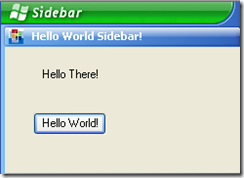
In this post I would like to cover step by step instructions on how to create a Plug-in for Windows Desktop Sidebar using a Desktop Sidebar SDK and C# .Net 2.0.
Prerequisites
Getting Started
Download and install Windows Desktop Sidebar by following a link. After installation is done go to installed sidebar directory, by default it will be "C:\Program Files\Desktop Sidebar". Find and unzip dssdk.zip file into "C:\Program Files\Desktop Sidebar\dssdk" or any other location of your choice.
Simple Hello World Sidebar Plug-In
Now it is time to start on creating our simple "Hello World" Desktop Plug-in. It will have a "Hello World!" button on the panel and by clicking on it it will display a "Hello There!" label.
Start a Visual Studio IDE and select "Create Project ...". Select C# Windows Forms Control Library or Windows Control Library and name it HelloWorldSidebar. In Visual Studio 2008 make sure that .Net Framework 2.0 is selected. Click OK.

New Solution and Project will be created. Set a reference to Desktop Sidebar SDK dsidebarpia.dll.

Rename UserControl1.cs as HelloWorldPanel.cs. This will be a UI of the panel displayed in the sidebar.

Double Click on HelloWorldPanel.cs and add label and button as shown. Lets name label and button as lblHello, btnHello. This will be our UI of the sidebar Plug-In.

Double Click "Hello World!" button and add the following code.
private void btnHello_Click(object sender, EventArgs e)
{
    lblHello.Text = "Hello There!";
}
Now starts something more interesting. Add "using DesktopSidebar;" at the top of the HelloWorldPanel.cs file. In order for a panel to appear in the sidebar it need to inherit from IPanel, IPanelWindow and IPanelProperties interfaces. Add them to HelloWorlPanel class declaration as shown. We will implement these interfaces shortly.
using System;
using System.Collections.Generic;
using System.ComponentModel;
using System.Drawing;
using System.Data;
using System.Text;
using System.Windows.Forms;

using DesktopSidebar;

namespace HelloWorldSidebar
{
    public partial class HelloWorldPanel : UserControl, IPanel, IPanelWindow, IPanelProperties
    {
        public HelloWorldPanel()
        {
            // Comment this out to enable panel refresh in the sidebar
            // InitializeComponent();
        }

        private void btnHello_Click(object sender, EventArgs e)
        {
            lblHello.Text = "Hello There!";
        }
    }
}
Moment of the truth! Make sure that InitializeComponent(); in HelloWorlPanel() constructor is commented. It took me one day to workout why sidebar was not repainting.
Implementing Interfaces
To create Interface methods and properties use a shortcut provided by Visual Studio to Implement Interfaces. Use Implement Interface entry to auto-create them.

IPanel Members
Here we need to use 3 Win32 API functions defined in Win32API Declarations region - SendMessage, SetParent, GetParent.
using System;
using System.Collections.Generic;
using System.ComponentModel;
using System.Drawing;
using System.Data;
using System.Text;
using System.Windows.Forms;
using System.Runtime.InteropServices;

using DesktopSidebar;

namespace HelloWorldSidebar
{
    public partial class HelloWorldPanel : UserControl, IPanel, IPanelWindow, IPanelProperties
    {
        ....

        #region IPanel Members
        protected Sidebar sidebar;
        protected IPanelParent panelParent;
        protected IPanelConfig panelConfig;
        protected int panelCookie;
        protected int parentWnd = -1;

        #region Win32API Declarations
        public const int WM_CLICK = 0x00F5;
        public const int WM_LBUTTONDOWN = 0x0201;
        public const int WM_LBUTTONUP = 0x0202;

        [DllImport("user32.dll", CharSet = CharSet.Auto)]
        private static extern int SendMessage(IntPtr hWnd, int wMsg, IntPtr wParam, IntPtr lParam);

        [DllImport("user32.dll", EntryPoint = "SetParent")]
        static extern int SetParent(int hwndChild, int hwndNewParent);

        [DllImport("user32.dll", ExactSpelling = true, CharSet = CharSet.Auto)]
        public static extern IntPtr GetParent(IntPtr hWnd);
        #endregion Win32API Declarations

        public void Close()
        {
            //throw new NotImplementedException();
        }

        public void Create(int hwndParent, Sidebar Sidebar, IPanelParent parent,
            IPanelConfig config, ICanvas canvas, IXmlNode configRoot,
            IXmlNode panelConfig, IXmlNode settingsRoot, IXmlNode panelSettings, int cookie)
        {
            panelParent = parent;
            panelCookie = cookie;
            this.panelConfig = config;
            parentWnd = hwndParent;

            SetParent((int)Handle, hwndParent);
            panelParent.SetCaption(panelCookie, "Hello World Sidebar!");

            this.SetStyle(ControlStyles.DoubleBuffer, true);
            this.SetStyle(ControlStyles.AllPaintingInWmPaint, true);

            InitializeComponent();
            Application.DoEvents();
        }

        public void Save(IXmlBuilder panelItem, IXmlBuilder settingsRoot)
        {
            //throw new NotImplementedException();
        }

        public bool Tick(bool minute)
        {
            return false;
        }
        #endregion IPanel Members

        ....
    }
IPanel Window Members
        #region IPanelWindow Members
        public int GetFitHeight(int width)
        {
            return Height;
        }

        protected delegate System.IntPtr DelegateGetHwnd();

        public IntPtr GetHwnd()
        {
            if (this.InvokeRequired)
                return (System.IntPtr)this.Invoke(new DelegateGetHwnd(GetHwnd));

            return Handle;
        }
        #endregion IPanelWindow Members
IPanel Properties Members
        #region IPanelProperties Members
        public void ShowProperties(int hwnd)
        {
            //throw new NotImplementedException();
        }
        #endregion IPanelProperties Members
Plugin class
In order to attach our Panel to Sidebar we need to create a Plugin class that inherits IPlugin and IPanelCreator interfaces. Add a C# class file to project and name it plugin.cs. Also you need to find and add a bmp image file that can be used as panel.bmp to display as an icon in the panel. Add panel.bmp file as existing Item to a project and set BuildAction property to "Embedded Resource".
using System;
using System.Collections.Generic;
using System.Text;
using System.Drawing;
using System.Windows.Forms;

using DesktopSidebar;

namespace HelloWorldSidebar
{
    public class Plugin : IPlugin, IPanelCreator
    {
        public Plugin()
        {

        }

        #region IPlugin Members
        public void Load(out string author, out string authorEMail, out string description,
            out string website, int sidebarBuild, Sidebar Sidebar,
            IXmlNode pluginConfig, int pluginCookie)
        {
            AppDomain.CurrentDomain.AppendPrivatePath(@"plugins\HelloWorldSidebar");

            author = "My Company Name";
            authorEMail = "mail@mycompany.com";
            description = "Hello World Sidebar";
            website = "www.mycompany.com";

            Bitmap bmp = new Bitmap(GetType(), "panel.bmp");

            ImageList imageList = new ImageList();
            imageList.Images.Add(bmp, Color.FromArgb(0, 255, 0));

            Sidebar.RegisterPanel(
                "HelloWorldSidebar",
                "Hello World Sidebar",
                "Hello World Sidebar Plugin",
                (int)imageList.Handle,
                "0",
                "Hello World Sidebar",
                "0",
                "",
                "",
                pluginCookie);

            imageList.Dispose();
            bmp.Dispose();
        }

        public void OnPluginLoaded(string plugin)
        {
            //throw new NotImplementedException();
        }

        public void Unload()
        {
            //throw new NotImplementedException();
        }
        #endregion IPlugin Members

        #region IPanelCreator Members
        public void CreatePanel(ref IPanel panel, string panelClass)
        {
            if (panelClass == "HelloWorldSidebar")
            {
                panel = new HelloWorldPanel();
            }
        }
        #endregion IPanelCreator Members
    }
}
HelloWorldSidebar.dsplugin file
Desktop Sidebar knows about it's plug-ins from *.dsplugin files. Add new xml file to a project and name it HelloWorldSidebar.dsplugin.
<?xml version="1.0" encoding="utf-8" ?>
<plugin progid="HelloWorldSidebar.Plugin" compatible="61" >
  <defaults>

    <panel name="HelloWorldSidebar" >
      <item name="decorated" value="1"/>
      <item name="frequency" value="1"/>
    </panel>

  </defaults>

</plugin>
Project Properties
Our Sidebar plug-in is almost ready to be built and used. Lets edit Project Properties to set where our sidebar should be copied after build and what exe to run on debug.
Project Post Build Events
Open Project Properties, Build Events and Edit "Post Build Events". Copy the following lines.
mkdir "C:\Program Files\Desktop Sidebar\plugins"
mkdir "C:\Program Files\Desktop Sidebar\plugins\$(ProjectName)"
copy "$(TargetDir)*.*" "C:\Program Files\Desktop Sidebar\plugins\$(ProjectName)"
copy "$(ProjectDir)*.dsplugin" "C:\Program Files\Desktop Sidebar\plugins\$(ProjectName)"
Project Build and Debug
In Project Debug select Start external Program and set path to sidebar executable.
C:\Program Files\Desktop Sidebar\dsidebar.exe
In Project Build tick Register for COM Interop box. This change will not have any affect if we do not set ComVisible property to true in AssemblyInfo.cs file.
[assembly: ComVisible(true)]
Running Hello World Sidebar Plug-in
Lets start our sidebar plug-in by hitting F5. If everything was done correctly sidebar will appear on the right side of the screen. Our Panel is not visible yet and we need to add it to a panel. Right mouse click on the Sidebar and select "Add Panel ..." from menu. Select "Hello World Sidebar" from the list.

And here it is in the list.